Arduino for Beginners: A Complete Starting Guide with Examples and Code | FactKnowInfo
Introduction
Arduino is an open-source electronics platform that has revolutionized the world of DIY electronics, robotics, and IoT. Whether you’re a hobbyist, student, or professional, Arduino is the perfect tool to bring your ideas to life. In this guide, we’ll walk you through the basics of Arduino, how to set it up, and even write your first program. By the end, you’ll have the confidence to start your own Arduino projects!
What is Arduino?
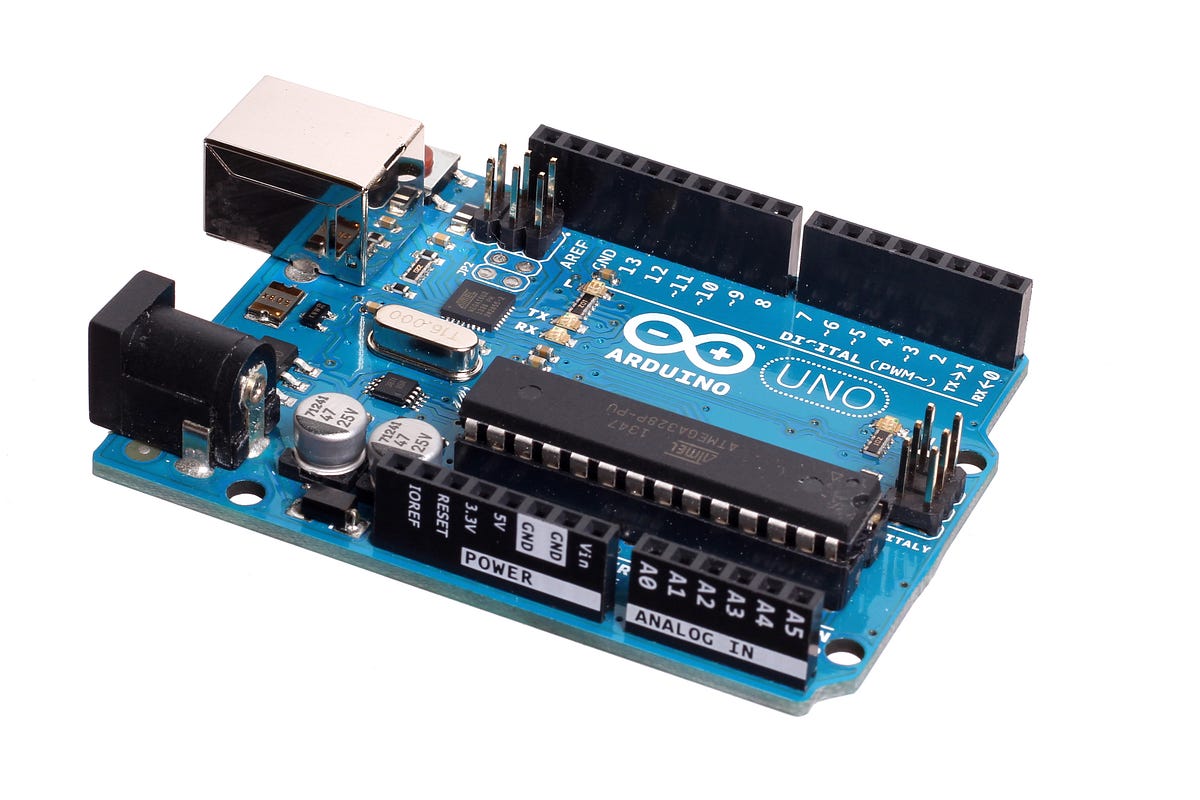
Arduino is a microcontroller-based platform that allows you to create interactive electronic projects. It consists of:
- Hardware: The Arduino board (e.g., Arduino Uno, Nano, Mega).
- Software: The Arduino IDE (Integrated Development Environment) for writing and uploading code.
Arduino is beginner-friendly, affordable, and has a huge community, making it ideal for learning electronics and programming.
Why Learn Arduino?
- Easy to use, even for beginners.
- Great for prototyping and experimenting.
- Wide range of applications (robotics, IoT, home automation, etc.).
- Extensive library support for sensors, displays, and modules.
Getting Started with Arduino
- What You’ll Need
- Arduino Board: Start with an Arduino Uno (most popular for beginners).
- USB Cable: To connect the Arduino to your computer.
- Computer: Windows, macOS, or Linux.
- Arduino IDE: Download it from the official Arduino website.
- Components (optional for projects):
LEDs
Resistors
Breadboard
Jumper wires
Sensors (e.g., temperature, motion)
2. Installing the Arduino IDE
- Go to the Arduino website and download the IDE for your operating system.
- Install the software by following the on-screen instructions.
- Open the Arduino IDE once installed.
3. Setting Up Your Arduino
- Connect your Arduino board to your computer using the USB cable.
- In the Arduino IDE, go to Tools > Board and select your Arduino model (e.g., Arduino Uno).
- Go to Tools > Port and select the port your Arduino is connected to.
Understanding the Arduino IDE
The Arduino IDE is where you write and upload code to your Arduino board. Here’s a quick overview:
- Sketch: An Arduino program is called a sketch.
- Setup(): This function runs once when the Arduino starts. Use it to initialize settings.
- Loop(): This function runs repeatedly after setup(). Your main code goes here.
- Verify: Checks your code for errors.
- Upload: Sends the code to your Arduino board.
Your First Arduino Program: Blinking an LED
Let’s start with a simple project: blinking an LED. This is the “Hello, World!” of Arduino.
Components Needed
1 x LED
1 x 220-ohm resistor
Breadboard and jumper wires
Circuit Setup
- Connect the long leg (anode) of the LED to Digital Pin 13 on the Arduino.
- Connect the short leg (cathode) of the LED to the 220-ohm resistor.
- Connect the other end of the resistor to the GND (Ground) pin on the Arduino.
Code
void setup() {  // Initialize digital pin 13 as an output  pinMode(13, OUTPUT);}
void loop() {  digitalWrite(13, HIGH); // Turn the LED on  delay(1000);            // Wait for 1 second  digitalWrite(13, LOW);  // Turn the LED off  delay(1000);            // Wait for 1 second}
Explanation
- pinMode(13, OUTPUT): Sets pin 13 as an output pin.
- digitalWrite(13, HIGH): Sends a HIGH signal to pin 13, turning the LED on.
- delay(1000): Pauses the program for 1000 milliseconds (1 second).
- digitalWrite(13, LOW): Sends a LOW signal to pin 13, turning the LED off.
Upload the code to your Arduino, and you should see the LED blink on and off every second!
Next Steps: Exploring More Projects
Once you’ve mastered the basics, try these beginner-friendly projects:
- Fading LED: Use PWM (Pulse Width Modulation) to control LED brightness.
- Push Button LED: Turn an LED on/off using a push button.
- Temperature Sensor: Read temperature data using a sensor like the LM35.
- Servo Motor Control: Control the position of a servo motor.
Tips for Beginners
- Start Small: Begin with simple projects and gradually move to complex ones.
- Use the Arduino Reference: The Arduino Reference is a great resource for understanding functions and syntax.
- Experiment: Don’t be afraid to modify code and try new things.
- Join the Community: The Arduino community is vast and supportive. Check out forums like Arduino Forum for help and inspiration.
FAQs
- What programming language does Arduino use?
Arduino uses a simplified version of C++.
2. Can I use Arduino for IoT projects?
Yes! Arduino boards like the ESP8266 and ESP32 are great for IoT projects.
3. How much does an Arduino cost?
An Arduino Uno typically costs around 20−20−25.
4. Do I need prior programming experience?
No, Arduino is beginner-friendly, and you can learn as you go.
Conclusion
Arduino is a powerful and versatile platform that opens the door to endless possibilities in electronics and programming. With this guide, you’ve taken your first step into the world of Arduino. Now it’s time to experiment, build, and create! Share your first Arduino project in the comments below, and let us know how it goes.
Happy tinkering!

Comments
Post a Comment